Welcome
Thank you for your purchase and welcome to the Lujin. Lets get you up and running quick smart.
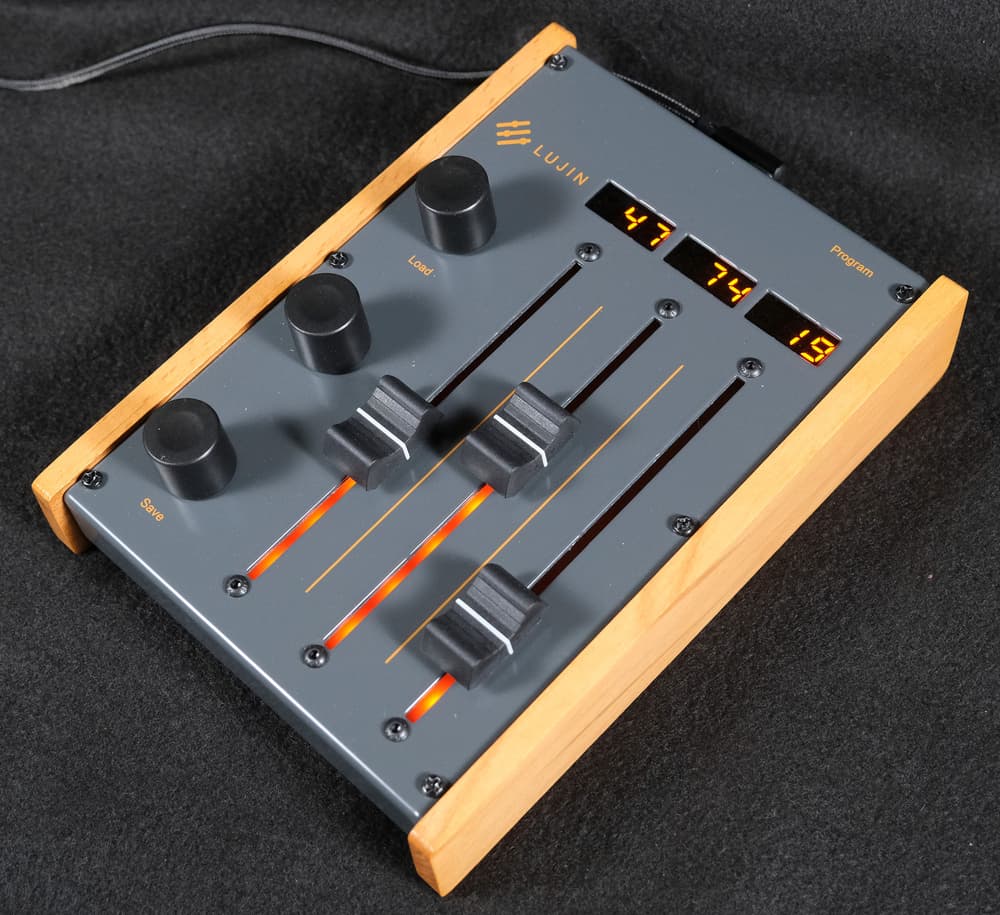
Getting Started
The Lujin is a plug-and-play USB MIDI device. No software or drivers are needed for Windows or Mac. Just connect it with the USB cable provided, and you're ready to go.
Basic Use
Right out of the box, the Lujin is ready to use. It comes with a default configuration (Preset Bank 1) with standard Control Change (CC) values, common for many VST and virtual instruments.
| Control | CC Value | Range |
|---|---|---|
| Faders | Left: 001, Middle: 011, Right: 021 | 0 to 127 |
| Rotary Knobs | Top: 032, Middle: 010, Bottom: 019 | 0 to 127 |
| Push Buttons | Top: 117, Middle: 118, Bottom: 119 | Toggles between 0 or 127 |
Changing CC Values
For Faders and Knobs
- Short-press the Program button on the back of the Lujin
- The values on the screen will flash
- Adjust faders or knobs to the desired CC values as shown on the screen
- Press Program again to exit, or to save this configuration (even after it's unplugged), long-press the Program button, then press the Save button (bottom knob). The Lujin will show "Saved" on the display
For Push Buttons
- While in Program mode, double-press the Program button (short-press twice)
- The values on the screen will flash slowly, indicating button programming mode
- Rotate Knobs to set CC values for each push button
- Press Program to exit
Note: All changes are retained until the device is powered off. Changes can be permanently saved to Preset Banks (see below).
Device Settings
- Press and hold the Program button on the back of the Lujin
- The screens will flash C, P, S, showing you're in Settings Mode
- C = MIDI Channel. Move the left fader to set
- P = Preset Bank (Lujin stores up to 16 banks). Adjust with the middle fader
- S = Screen Saver Timer. Adjust with the right fader to set the idle time (0 disables it)
Preset Banks
The Lujin can store up to 16 custom preset banks, each with unique CC values, and the MIDI channel is also stored per preset. For example:
- Bank 1: Configured for your DAW
- Bank 2: Set for a specific VST
- Bank 3: Mapped to a hardware synth via MIDI DIN port
Saving a Preset Bank
- Adjust faders, knobs, buttons, and MIDI channel as desired
- Press and hold the Program button until C, P, S appears
- Use the middle fader to select a bank (1-16)
- Press the Save (bottom button). The screen will show "Saved"
Loading a Preset Bank
- Press and hold the Program button until C, P, S appears
- Use the middle fader to select the bank you want to load
- Press the Load (top button). The screen will show "Loaded"
Enjoy exploring your music with the Lujin.
Check the FAQ for further information